 SeeingSky
News
Spread One Aircraft Across Several Windows on Windows
SimFly Pad for Windows gets a Window Manager: open several windows of the same aircraft, place them on your monitors, and save the arrangement as a layout.
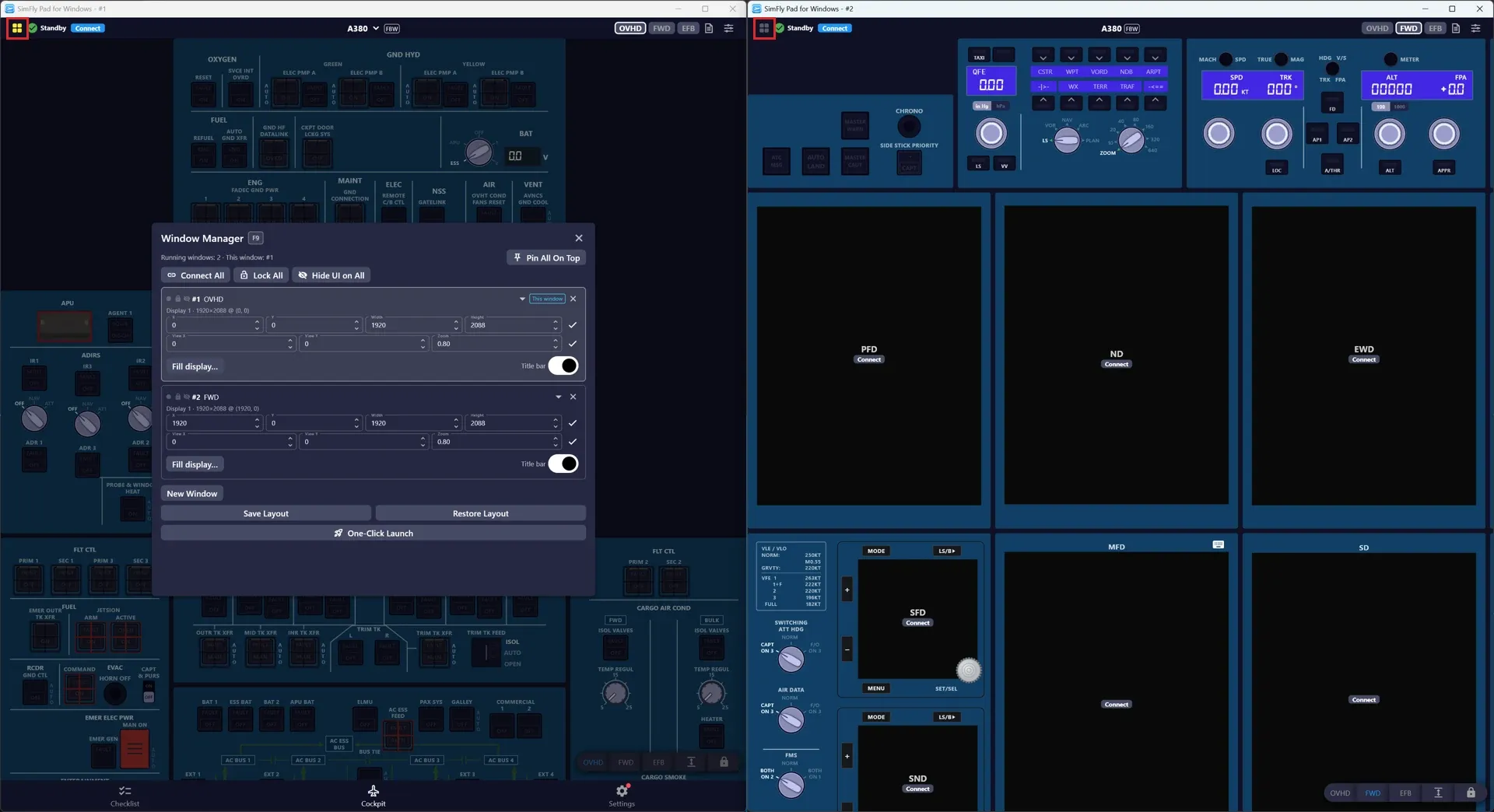
If you fly with more than one monitor, you have probably wanted SimFly Pad to show the overhead panel on one screen and the forward panel on another. Until now that meant starting the program twice and dragging each window into place by hand, every time.
The next SimFly Pad for Windows update adds a Window Manager that takes care of this.
What it does
- Open extra windows with one click. Each window shows one view of the current aircraft — OVHD in one, FWD in another, a checklist in a third.
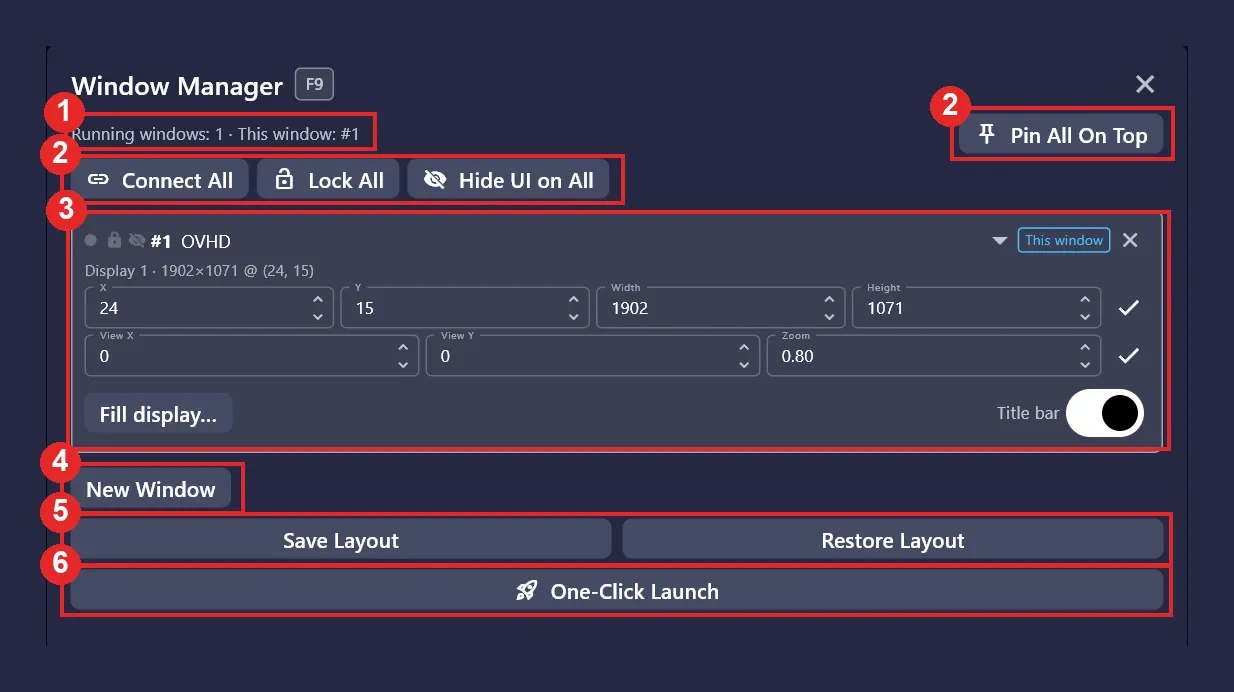
- Place and size every window from one list. Type exact pixel values, or fill a whole display with one click.
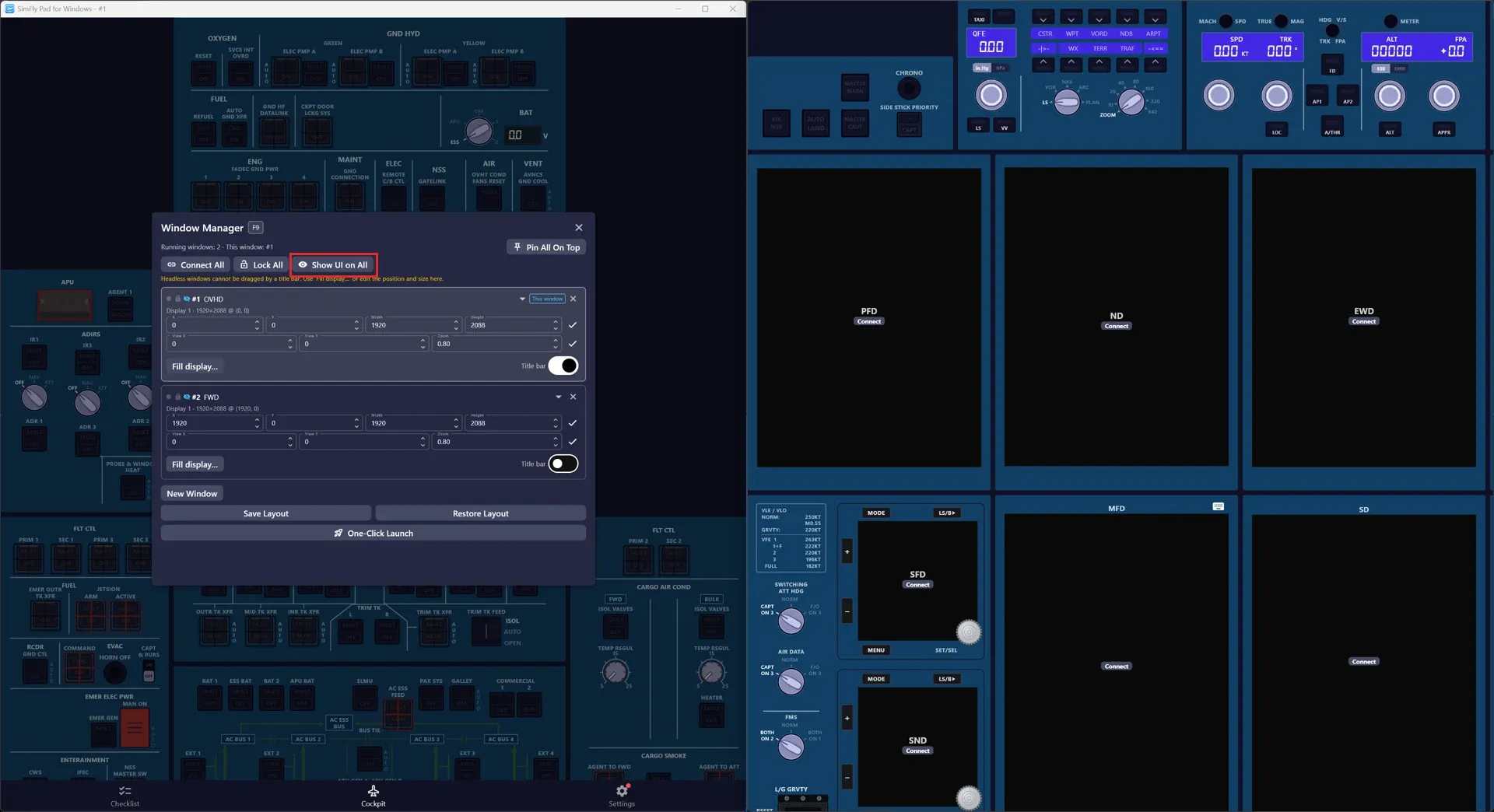
- Hide what you do not need. Each window can drop its title bar, and a single button hides the app’s own top bar and view bar so only the panel remains.
- Save it as a layout. Restore the arrangement later, or use One‑Click Launch to open every window, put it in place and connect it to SimFly Linker in one go.
How it works in practice
- Turn on Enable Window Manager on the Settings page.
- On the Cockpit page, click the grid icon at the top‑left or press F9.
- Click New Window to open another window. It shows the next view that is not already on screen.
- Use the list to move and resize each window, switch its view, or fill a display.
- Click Save Layout and give it a name. Next time, Restore Layout or One‑Click Launch brings everything back.
A few things to know
- This is a Windows‑only feature. iOS and Android are not affected.
- The extra windows are child windows of the one you opened them from. They have no settings page; sign‑in and settings happen in the main window, and they follow the aircraft selected there.
- Every window is a separate process and needs a few hundred megabytes of memory, so a two‑ or three‑window setup is the realistic range.
- All windows connected to SimFly Linker at the same time must show the same aircraft.
The full step‑by‑step guide, with screenshots of every dialog, is in the documentation: Use Multiple Windows on Windows.